








 Store
Store


If you are an Amazon Music subscriber and an Apple TV owner, you have the perfect recipe for a premium home audio experience. Whether you want to enjoy the immersive sounds of Dolby Atmos or simply want your favorite playlists streaming through your living room speakers, getting these two platforms to work together is easier than ever. In this guide, we will walk you through the native Amazon Music setup, as well as, the AirPlay and Home Sharing alternative.
Part 1. Is Amazon Music on Apple TV?
Amazon Music is compatible with Apple TV, and the Amazon Music app for Apple TV is available to those users living in the U.S., the UK, New Zealand, Australia, Brazil, Canada, France, Italy, Spain, Germany, Mexico, Japan, and India. If you have an Amazon Prime account or subscribe to Amazon Music Unlimited, you can install the Amazon Music app on Apple TV for playing music.
However, in addition to using the native Amazon Music app for Apple TV, there are some other ways available for you to get your Amazon Music library on Apple Music, that is, to use AirPlay or Home Sharing. Depending on your hardware and how much time you have, you can choose the method that fits your needs, which brings the different experience.
| Feature | Amazon Music App for Apple TV | AirPlay 2 | Home Sharing |
|---|---|---|---|
| Best For | Immersive home theater | Quick sharing or legacy devices | Offline, stable listening |
| Audio Quality | Up to Lossless (24-bit) and Dolby Atmos | Limited to CD Quality (16-bit) | Dependent on original file |
| Lyrics | Full-screen X-Ray lyrics | Album art only | Basic |
| Control | Siri Remote or Apple TV | iPhone, iPad, Mac, or Android devices | Siri Remote or Apple TV |
| Reliability | High | Moderate | Highest |
Part 2. How to Get Amazon Music for Apple TV Directly
Using the official Amazon Music app for Apple TV is the best way to enjoy high-definition and access the full interface, including scrolling lyrics. But before we dive in, ensure your hardware is ready. To use the native Amazon Music app, you need to meet the following requirements.
-
Apple TV 4K (any generation) or Apple TV HD (4th generation)
-
tvOS 12.0 or later
-
An active Amazon Music account
How to Install the Amazon Music App on Apple TV
The native Amazon Music app is the gold standard for your home theater. Follow these steps to ensure a clean installation on your Apple TV.
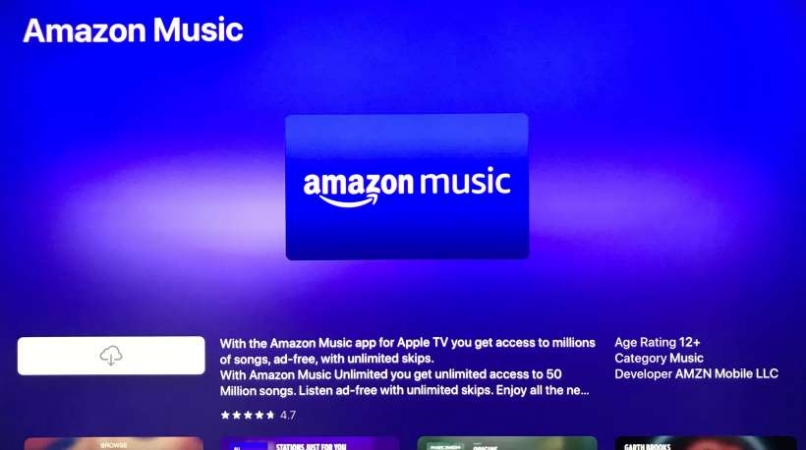
Step 1. Power on your Apple TV and connect it to a WiFi network.
Step 2. Open the App Store from the home screen and search for Amazon Music.
Step 3. Tap Get or Install to download the app to your home screen.
How to Activate Amazon Music on Apple TV
Once the Amazon Music app is installed, you need to link to your Amazon Music account. Here is how to activate Amazon Music on Apple TV.

Step 1. Launch Amazon Music, then you will see a six-letter pairing code on your Apple TV.
Step 2. On your iPhone or other device, open amazon.com/code.
Step 3. Log in to your Amazon Music account and enter the code shown on your TV.
Step 4. Tap Continue to complete the registration.
Now the Amazon Music app will automatically refresh and grant you access to your library. You can easily browse My Music, explore Stations, or use the search function to find specific artists. The Apple TV interface is optimized for the Siri Remote. So, you no longer need to navigate menus, and you can use the Siri Remote to trigger playback.
"Siri, play my Discovery Mix on Amazon Music."
"Siri, play 80s Rock in the Living Room on Amazon Music."
"Siri, play Taylor Swift on Amazon Music."
Enable Spatial Audio and Dolby Atmos:
Amazon Music Unlimited offers a vast catalog of Dolby Atmos tracks. To hear them on your Apple TV 4K, you need to adjust the playback audio in advance.
Step 1. Go to Settings > Video and Audio on your Apple TV.
Step 2. Ensure Immersive Audio (Dolby Atmos) is set to On.
Part 3. How to Play Amazon Music to Apple TV via AirPlay
If you have an older Apple TV (2nd or 3rd generation) that doesn't support the App Store, or if a friend wants to play a song from their iPhone, AirPlay is your best friend. Here we will show you how to AirPlay Amazon Music from Apple devices or cast Amazon Music from Android devices.
Option 1. AirPlay Amazon Music to Apple TV from iPhone
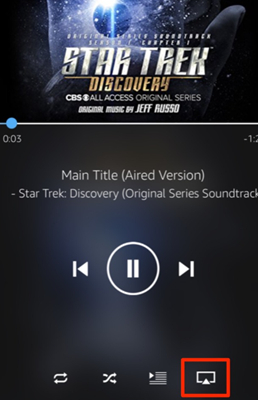
Step 1. Launch Amazon Music on your iPhone or iPad and select a playlist to play.
Step 2. Start playing your desired music tracks in Amazon Music.
Step 3. Tap the AirPlay icon at the bottom of the playing screen.
Step 4. From the list of available devices, find Apple TV and choose to cast Amazon Music.
Option 2. AirPlay Amazon Music to Apple TV from Mac
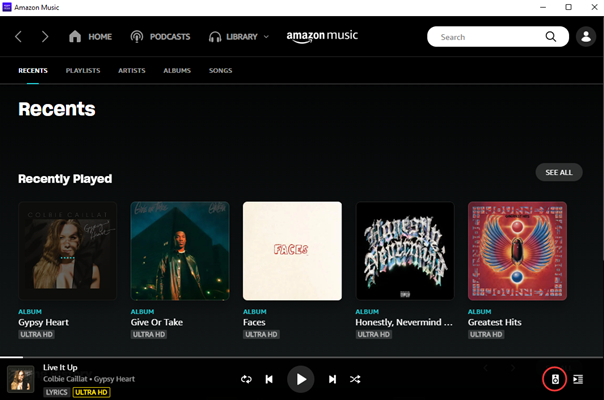
Step 1. Open Amazon Music on your Mac and find a playlist to play.
Step 2. Click the Play button to stream the whole playlist.
Step 3. Click the Device button at the bottom right corner.
Step 4. From the pop-up menu, select Apple Music as the destination to play Amazon Music.
Option 3. Cast Amazon Music to Apple TV from Android
Step 1. Download and install AllCast from the Google Play Store on your Android device.
Step 2. Fire up Amazon Music on your device and start playing your liked content.
Step 3. Go back to AllCast and tap the Cast icon to cast Amazon Music to Apple TV.
Note:
Ensure both your device and Apple TV are connected to the same WiFi network, or the AirPlay or Cast icon may not appear.
Part 4. How to Play Amazon Music on Apple TV via Home Sharing
If you own an older Apple TV (2nd or 3rd generation) that doesn't support the App Store or frequently deal with the Amazon Music not working on Apple TV issue, a permanent solution is to convert your Amazon Music tracks into a format the Apple TV can read natively via Home Sharing. TunesMake Amazon Music Converter is particularly useful here.
TunesMake Amazon Music Converter allows you to convert Amazon Music tracks into Apple-friendly formats like M4A or MP3.Once converted and added to the Apple Music app, your music appears in the Computers app on Apple TV, playing instantly without needing the Amazon Music app to handshake with a server. Follow the steps below to download songs from Amazon Music for playing on Apple TV.

Streaming Audio Recorder –
Download music from Amazon Music unlimitedly
- Download songs, albums, and playlists from Amazon Music
- Convert Amazon Music to MP3, M4A, M4B, WAV, FLAC, and AIFF
- Remove DRM protection from Amazon Music completely and safely
- Preserve the original audio quality and ID3 tags for management
- Support downloading music from 10 popular streaming platforms
Security Verified. 100% Clean & Safe.
Step 1 Set up the Parameters for Amazon Music
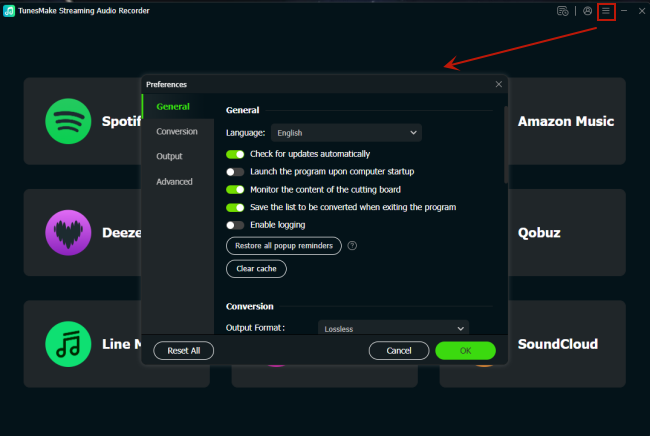
Launch TunesMake Streaming Audio Recorder on your computer. Before converting, go to set the output audio parameters by clicking the menu bar > Preferences. In the pop-up window, switch to the Convert tab and set the output format to Apple-friendly formats like MP3 or M4A. For better audio quality, you can adjust the bit rate, sample rate, and channel.
Step 2 Select Tracks on Amazon Music to Download
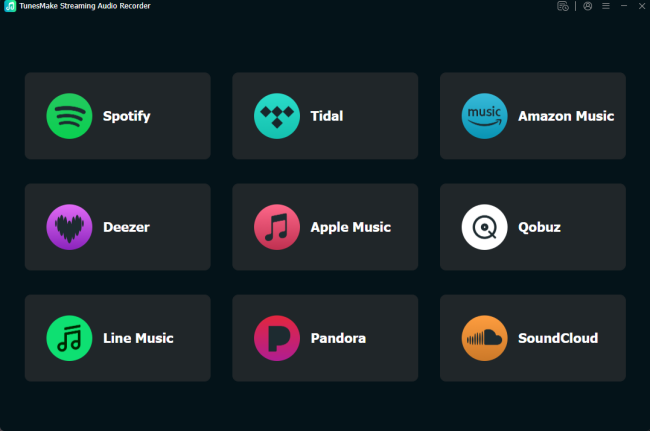
Go back to the main interface, and you'll find Amazon Music in the interface of the software. Then select Amazon Music to open and log into your Amazon Music account in the Amazon Music web player. In your Amazon Music library, find and select a curated playlist that you'd like to download. Just click the + button to add them into the conversion list.
Step 3 Download and Convert Amazon Music to MP3
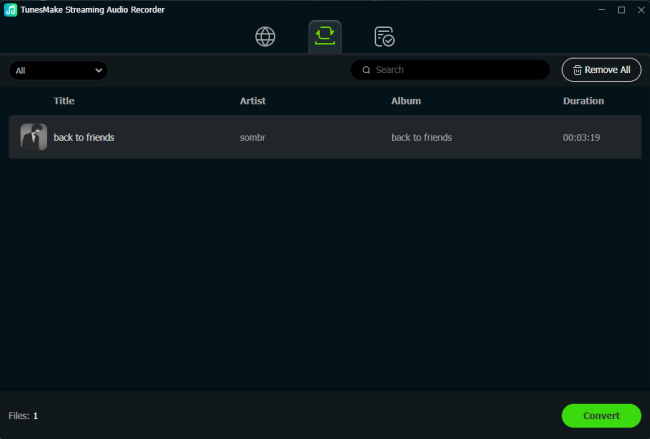
To download Amazon Music songs, you just need to click the Convert button. But keep in mind that it may take a little while depending on the size of the playlist and the speed of your internet connection. Once saved, the music tracks will be accessible from your computer. Then you can click the Converted icon to browse all the converted tracks.
Step 4 Start to Listen to Amazon Music on Apple TV
The final step is to stream Amazon Music to Apple TV. You need to upload those Amazon Music files to your iTunes library first, then play them on Apple TV via Home Sharing.
1) Open iTunes and click File > Add File to Library.
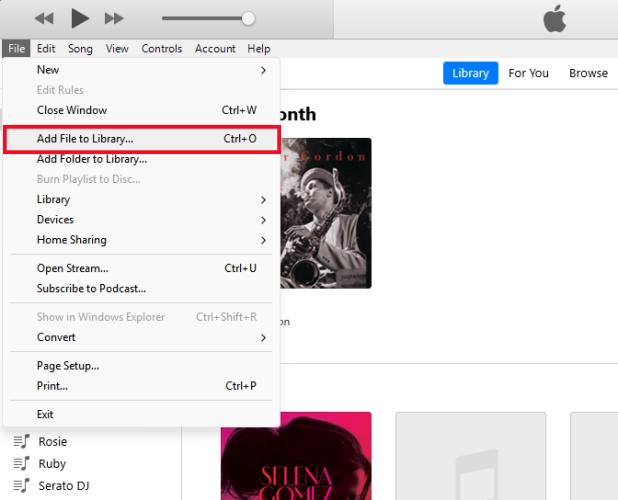
2) Choose to upload the Amazon Music files.
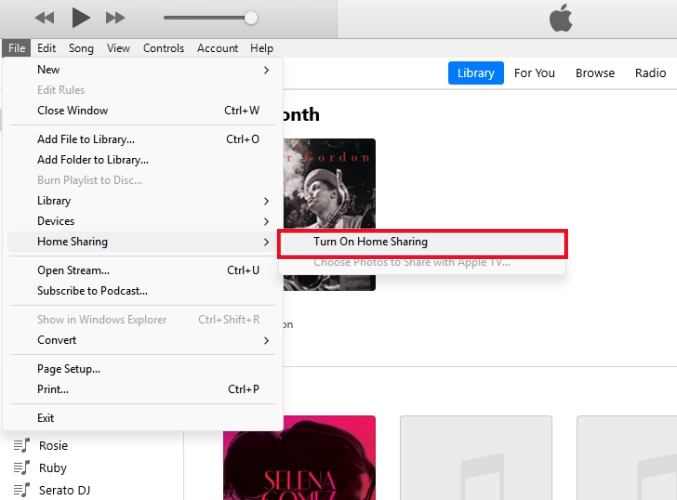
3) Click File > Home Sharing > Turn on Home Sharing.
4) Go to open Settings on Apple TV, then tap Accounts > Home Sharing.
5) Launch Apple Music on Apple TV and swipe to Library.
6) Find and select Amazon Music tracks to play.
Part 5. FAQs about Amazon Music for Apple TV
How to fix Amazon Music not working on Apple TV?
If the Amazon Music app is not working on your Apple TV, you can check whether your Apple TV or Amazon Music is updated to the latest version. Or you can reinstall the Amazon Music app, restart Apple TV, and reset Apple TV to factory settings.
Can I use Siri to play Amazon Music on Apple TV?
Yes! You can use the Siri Remote to play Amazon Music on Apple TV. Just say, "Siri, play 80s Pop on Amazon Music." The Amazon Music app will launch the requested station automatically.
Does Amazon Music on Apple TV support Lossless audio?
Yes, it supports ALAC (Lossless) up to 24-bit/48 kHz. You can toggle this in the Audio Quality settings within the Amazon Music app menu. Then you can enjoy Lossless audio on Apple TV.
Can I view lyrics while I listen to Amazon Music on Apple TV?
Yes. The latest version of the Amazon Music app for Apple TV features enhanced X-Ray Lyrics. Just swipe up on your remote during any song to enter a full-screen, synchronized lyric view.
Does Amazon Music support offline listening on Apple TV?
The Amazon Music app for Apple TV is designed for streaming. For offline playback, you can use the Amazon Music app on your mobile device and AirPlay the download tracks. And we recommend downloading Amazon Music tracks with TunesMake, then you can use Home Sharing to listen to Amazon Music offline at anytime.
Part 6. Conclusion
By following these steps, you can transform your Apple TV into a powerful high-fidelity music hub. Whether you are using the Amazon Music app for the best visuals or AirPlay for convenience, your Amazon Music library is always just a few clicks away. Or for an offline listening, you can download Amazon Music tracks with TunesMake, and then use Home Sharing to get at anytime.
Related Articles



A professional writer at TunesMake, crafts in-depth tutorials, practical tips and expert advice focusing on streaming music, technology, and more.
- 1
- 2
- 3
- 4
- 5
- 6
- 7
 Leave Your Comment
(0)
Leave Your Comment
(0)

 Download Center

